

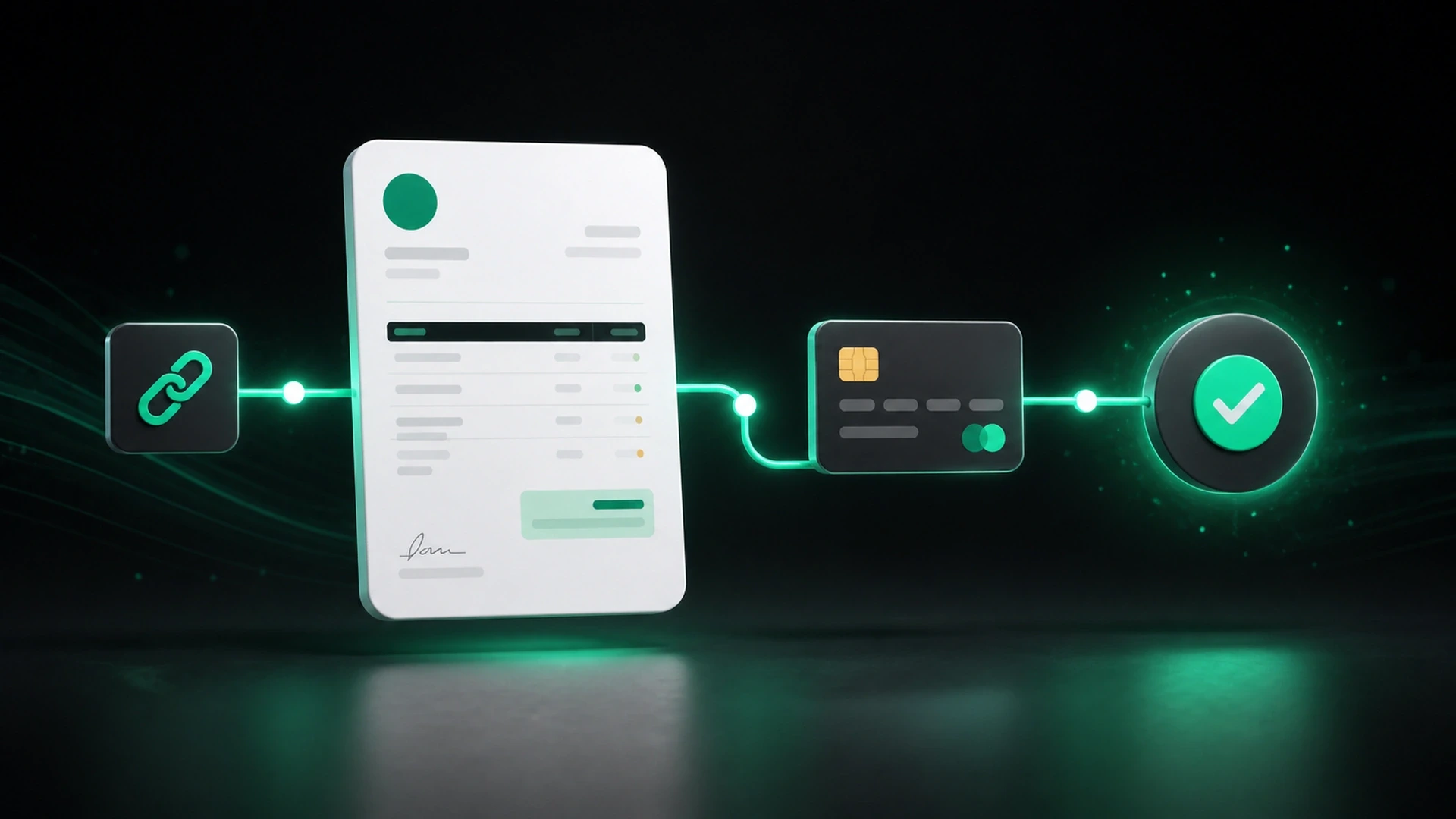
An invoice asks for payment. A payment link gives the client a direct route to complete it.
For a small business, that can mean fewer steps between receiving an invoice and taking action. Instead of asking the client to look up instructions in a separate email or call for payment details, you can make the payment option visible within the billing flow.
What is an invoice payment link?
An invoice payment link is a link a client can use to view an invoice and proceed to an available payment option. It is designed to connect the billing document with the payment step in one place.
The exact methods a client can use depend on the payment provider, account, location, and configuration. Before presenting a payment option to clients, make sure it is available and appropriate for your business.
Why payment links can improve the billing experience
They make the next step obvious
A clear invoice helps clients see what is due, when it is due, and where to pay. A visible payment link gives them a direct path to follow.
They reduce scattered instructions
Without a direct payment option, your client may need a separate message with bank details, a phone call, or a manual checkout process. Keeping the invoice and payment route connected can reduce routine questions.
They support a more consistent process
When each invoice follows the same pattern, your team knows how to send it and your clients know what to expect. Consistency is especially useful when you bill several customers or manage repeat work.
How to add payment links to your invoice workflow
1. Create an accurate invoice first
Start with a professional invoice that clearly identifies the client, items or services, total due, due date, and any applicable notes. A payment link cannot fix unclear billing details.
Review the total before you send it, particularly if the invoice follows an estimate or includes a prior deposit. The client should be able to recognize the work and the amount without extra explanation.
2. Choose the payment option you can support
Decide which payment methods you want to offer based on your business setup and provider configuration. Your clients may value different options, but availability is not universal. Confirm the methods you plan to present before you promise them in an invoice or client message.
3. Put the payment route where clients will see it
Send the invoice by email or share a secure public link, then make the payment option easy to find. Keep the call to action direct: “View invoice and pay,” “Complete payment,” or a similarly clear phrase.
Avoid placing several competing instructions in the same message. One obvious next step is generally easier for the client to follow.
4. Keep the amount and status current
If a client pays part of an invoice, the remaining balance should be updated before you send another reminder. A payment link is most useful when it reflects the amount that is actually due.
Use one current invoice record rather than sending multiple versions that could leave the client unsure which amount applies.
5. Follow up with context, not pressure
If payment has not arrived, a brief reminder can identify the invoice number, amount due, due date, and direct payment path. Keep it professional and match the timing to the terms you set with the client.
For example: “A reminder that invoice 1042 for $700 is due August 30. You can review the invoice and complete payment here: [link].”
When payment links are especially useful
Payment links can be a helpful fit for businesses that:
- Send invoices to clients who are not always in the office
- Need an easy way to share billing documents by email or public link
- Manage recurring client relationships or multiple invoices
- Want the payment step to stay connected to the invoice record
- Need a clearer way to follow an outstanding balance after a partial payment
They are not a substitute for setting clear terms, checking eligibility, or maintaining sound business records. They are one practical part of a better-organized billing workflow.
How GetBill supports a connected payment workflow
GetBill is built for small and midsize businesses that want to create estimates and invoices, share documents, and keep payment information organized without using complex accounting software.
With the Pro plan, GetBill includes Stripe payment links alongside unlimited core resources and invoice attachments. GetBill can send invoices by email or secure public link and update payment status through its connected workflow. Payment availability depends on the applicable Stripe account, client, and United States configuration.
GetBill is available for Android. Start with a 3-day free trial, then choose the plan that fits how your business bills and collects payments.
A quick invoice payment-link checklist
Before you send an invoice, check that:
- The client name, line items, total, and due date are correct
- The payment option is active for your account and setup
- The invoice clearly explains what the client is paying for
- The payment link is visible and easy to identify
- Any deposit or partial payment is reflected in the current balance
- Your follow-up message includes the invoice context and next step
Give clients a clearer way to pay
Connect professional invoices with a more direct payment path. Explore GetBill on Android and start your free 3-day trial.