

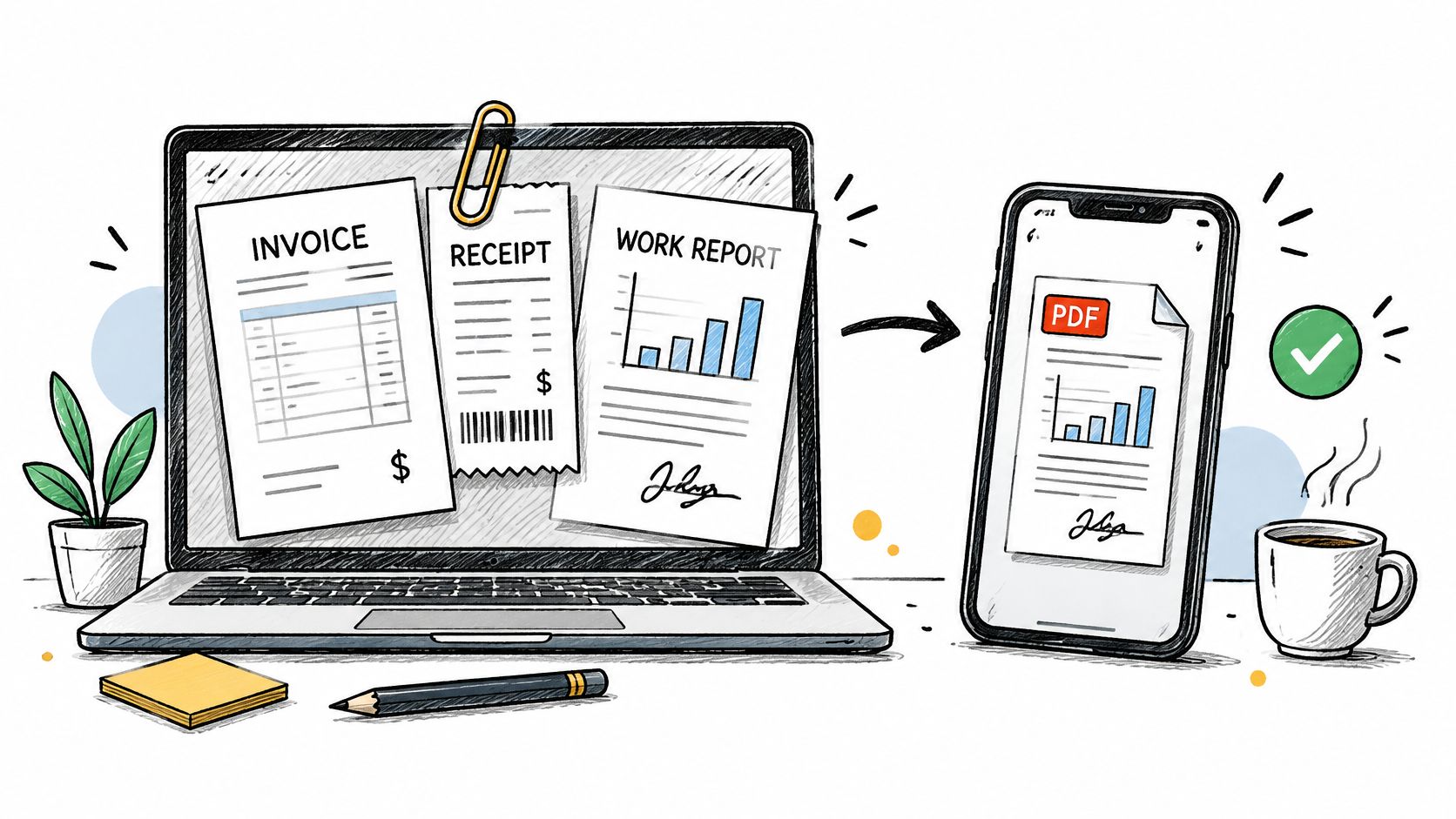
You're ready to send an invoice, and the proof is scattered. The signed scope sits in email, the materials receipt is a phone photo, and the completion shots are in another folder. Sending only the invoice invites a predictable reply asking what each line covers, and payment waits while the search starts again.
Learning to attach documents to an invoice fixes that gap when each file is tied to a specific line, checked for private data, and sent through a channel the client can process. The goal isn't more paperwork. It's a small, readable evidence set that travels with the amount due.
Table of Contents
- Attach a Supporting File to an Invoice PDF
- When a PDF Attachment Is Not Enough
- Attachment Methods Compared for Desktop and Mobile
- Choose and Name the Supporting Documents
- Protect Client Data Before You Send
- Confirm the Attachment Set and Keep It
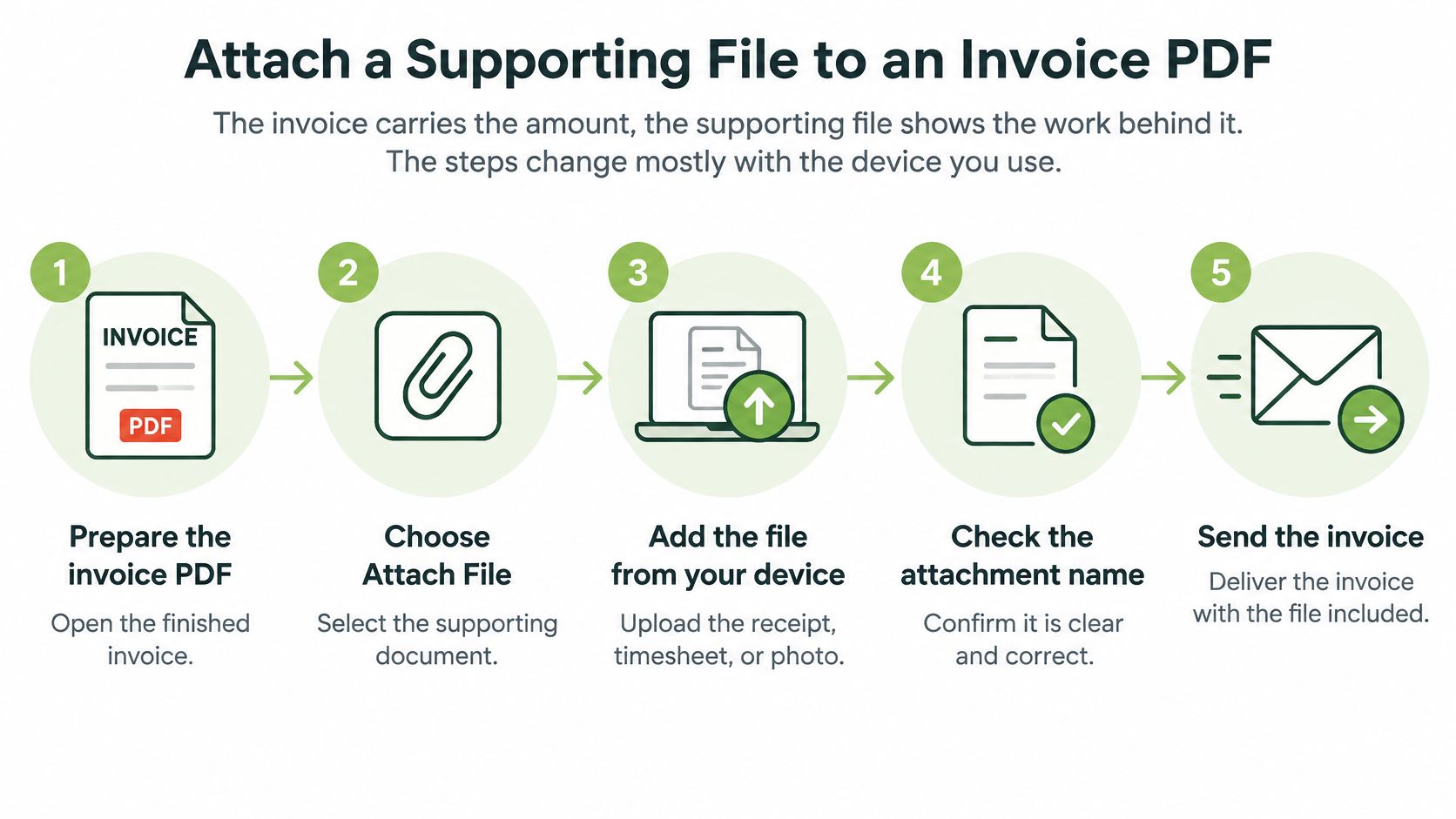
Attach a Supporting File to an Invoice PDF
The invoice carries the amount, and the supporting file shows the work behind it. The steps change mostly with the device you use.
Build the Package in Order
- Finalize the invoice first. Lock the invoice number, line items, and total in the invoicing tool before touching the PDF, so the attachment never describes a different amount. The common slip is exporting a draft, editing a price later, and sending evidence that no longer matches the bill.
- Gather and convert the evidence. Turn paper receipts and phone photos into readable PDFs, with searchable text where the tool offers it. A blurry receipt that can't be read at normal zoom doesn't prove a charge, so rescan it flat, in good light, and keep the original photo in the job folder.
- Attach or merge on desktop. Open the finished invoice PDF in a full editor such as Adobe Acrobat and look for a file attachment option in the comment or annotation tools, or merge the invoice and evidence into one PDF. Menu names change between versions, so search the help text for attach file or combine files rather than memorizing clicks. Avoid password-protected supporting files unless the client already has the password through a separate channel.
- Combine on a phone or tablet. Use the merge or combine function in a mobile PDF app, place the invoice first, then share the combined file. Check page order before sending, because mobile apps sometimes sort by file name instead of the order selected. Large scans can also fail, so confirm the final page count.
- Test in a second viewer. Open the result in a different PDF reader or a browser and click every attachment and page. This catches embedded files that open in the editor but stay hidden for the client. If an attachment doesn't appear, a combined PDF with the evidence as visible pages is the safer fallback.
- Send and save the exact version. Record the sent file with its delivery date and keep it unchanged, even if a corrected version goes out later. Saving over the original destroys the record of what the client actually received.
Practical rule: If the client needs special software or instructions to find the evidence, the package isn't finished.
What Finished Looks Like
A finished package has the invoice on page one, the evidence directly after it, and a file name that carries the invoice number. A handyman, for example, might send one PDF with the invoice first, a materials receipt second, and a signed completion note last. Each page supports a line the client can identify without asking for a separate explanation.
That order matters during approval. The person paying sees the total, checks the matching proof, and forwards one file internally without losing pieces. Keep the package small enough for normal email and portal upload limits, and split oversized photo sets into a separate, clearly labeled file rather than letting the send fail.
When a PDF Attachment Is Not Enough
A PDF attachment works well for many freelancers and small contractors, but it's not universally sufficient. Structured e-invoicing systems increasingly distinguish between the invoice's structured data and related supporting documents, a distinction covered in EY's 2025 e-invoicing monthly newsletter. The right format depends on the client's procurement channel, country, tax regime, file size limits, and retention rules, not on what an invoicing app permits.
Three Channels, Three Answers
Say a photographer bills a corporate marketing team. That client may require the invoice in a supplier portal and the usage license or delivery proof as a separate upload, so an emailed combined PDF gets ignored. The fix is to ask the accounts payable contact which fields and file slots the portal expects, then confirm the answer in writing.
A consultant billing across borders faces a different constraint. The buyer's system may accept only structured invoice data through a network, with timesheets or certificates transmitted separately. Embedding everything in a PDF can leave the invoice undiscoverable to that system, even though it looks complete on screen.
A cleaner billing a local homeowner sits at the simpler end. A PDF invoice plus a supply receipt the client agreed to reimburse is usually enough, provided the file opens easily and the charge matches the estimate. Forcing that homeowner through a portal would add friction without improving proof.
Jurisdiction still sets the outer boundary. In the EU, the European Commission's e-invoicing guidance notes that Directive 2014/55/EU was adopted on 16 April 2014, with a final April 2020 deadline for public authorities to receive and process compliant electronic invoices for public contracts above the EU procurement threshold, and EN 16931-1 defines the core semantic information required. That regime targets EU public procurement, so a US freelancer billing a private client usually follows the client's channel rather than that format. If the client can't find or process the attachment, it hasn't done its job.
Attachment Methods Compared for Desktop and Mobile
| Method | Best for | Trade-off |
|---|---|---|
| Embedded in the invoice PDF | One self-contained document for a small file | Grows the invoice and travels with it to anyone who receives it |
| Separate email attachment | Clients who already expect documents by email | Size limits, and attachments can be stripped from forwarded messages |
| Secure link to a shared folder | Large evidence such as job photos or video | Anyone with the link can open it, so restrict access |
| Combined single PDF | Short evidence set such as a signed completion report | Needs merging and a page review before sending |
| Upload through the invoicing app | Files that must stay tied to the invoice record | Confirm how the app stores and removes files |
Pick by Client Handling, Not Habit
Embed when the client needs one self-contained document and the supporting file is small. A one-page signed scope fits well, while a large scan makes the invoice slow to open and easy to reject at an email gateway. Remember that everyone who receives a forwarded invoice also receives everything embedded in it.
Send separate email attachments when the client already works that way and names files clearly in replies. It's familiar on desktop and mobile, but forwarded threads often drop attachments, and a recipient may save the invoice without the receipt. Number the files in the message body so a missing piece is obvious.
Link to a folder when evidence is large, such as a full set of job photos or a walkthrough video. Set the folder to the intended recipient where the tool allows it, and don't use an open link for contracts or site images. For field work, mobile invoice software can help keep the billing step close to the job, but the link settings still need checking before it's sent.
Combine into one PDF for a short evidence set that should be read in order. Mobile merging tools handle this well for a few pages, though very large scans can stall or compress text until it's hard to read. Review every page after combining, not just the first and last.
Choose the method the client can open without asking for help, and record that choice with the sent version.
Upload through the invoicing app when the file must stay tied to the invoice record for later lookup. Before relying on that as storage, confirm how files are exported and what happens on account deletion. GetBill states that account deletion removes or de-identifies generated documents, public document links, and uploaded attachments it controls, so an independent archive remains prudent.
Choose and Name the Supporting Documents
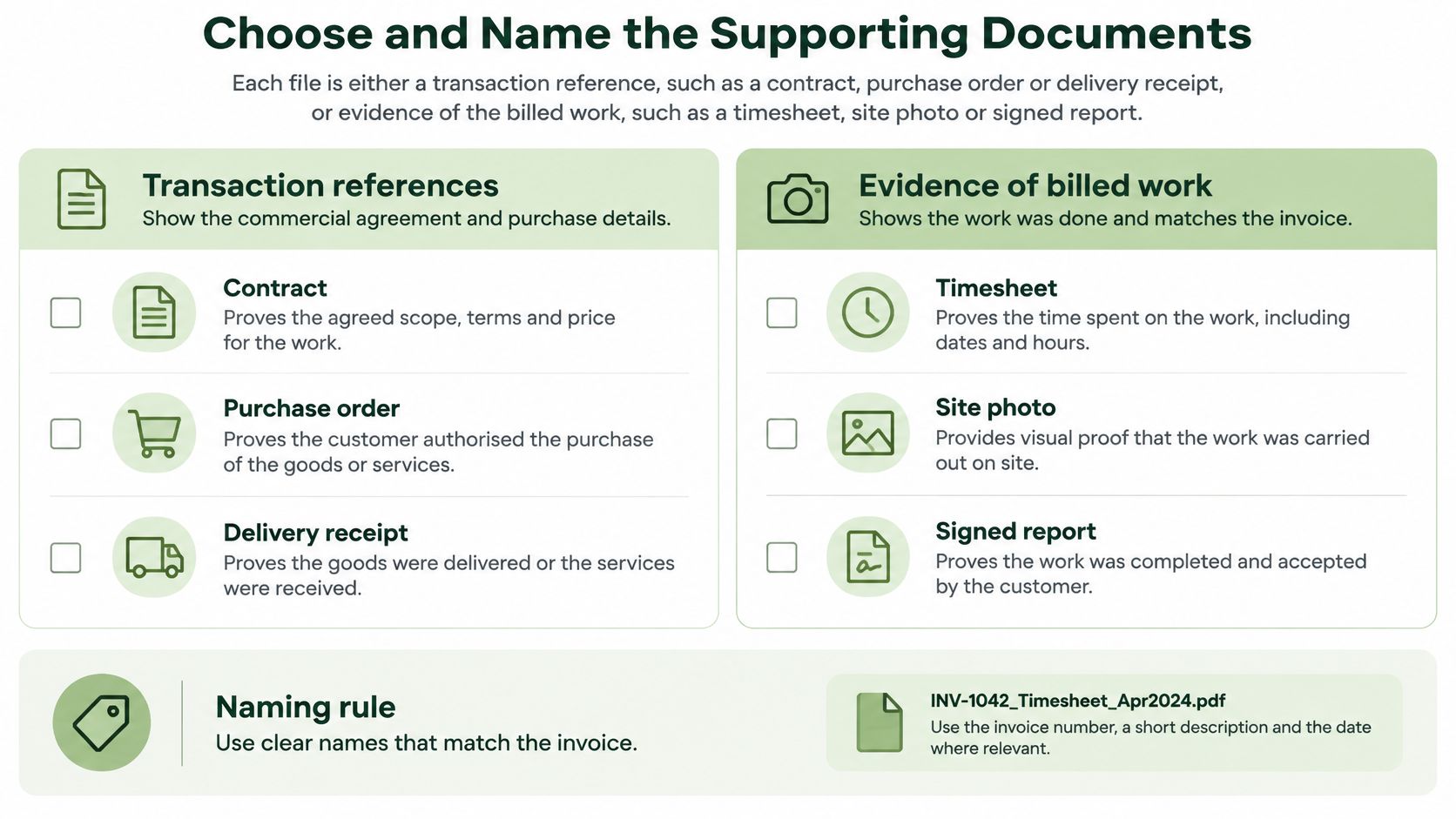
Start with one classification rule. Each file is either a transaction reference, such as a contract, purchase order, or delivery receipt, or evidence of billed work, such as a timesheet, completion report, or photo.
| Trade | File to attach | Classification | Line it supports |
|---|---|---|---|
| Handyman | Materials receipt | Transaction reference | Parts line |
| Consultant | Subcontractor invoice with proof of payment | Transaction reference | Subcontracted work line |
| Cleaner | Supply receipt, only when the client agreed to cost pass-through | Transaction reference | Supplies pass-through line |
| Any trade | Completion report or signed scope | Evidence of billed work | Labor or milestone line |
| Any trade | Timesheet | Evidence of billed work | Hourly labor line |
Run the Five-Point Match Check
Before sending, confirm the same customer name, the same invoice number or project code, and the same service period across the invoice and each attachment. Then check that amounts match the total or the specific line, and open the file to confirm it contains no unrelated pages. A structured workflow described in PDFlib's ZUGFeRD and Factur-X guidance also supports descriptive names such as INV-1042_ProjectX_completion-report.pdf, while published AP benchmarks cited there report exception rates ranging from 14% to 22% and approximately $53 to resolve each exception in one 2025 benchmark.
Those benchmarks are enterprise-oriented, not a guaranteed small business rate. They still explain why a missing purchase order number or unclear receipt creates manual back-and-forth for a client's payer. For a small service business, that delay is the practical cost, even when no one itemizes it.
Name each file with the invoice number first so files sort and search together. Tie it to the line in a cover note as well, such as Parts, line 2, materials receipt, because a file name alone may be shortened in a portal. Readers setting up their billing format can align that line wording with how to set up an invoice before the next job starts.
Attach two or three files rather than a full project archive. Keep the original estimate, signed scope, and unedited photos beside the generated invoice PDF in internal records, and send only the pieces that substantiate this bill. Extra pages slow review and increase the chance of including another client's details.
Protect Client Data Before You Send
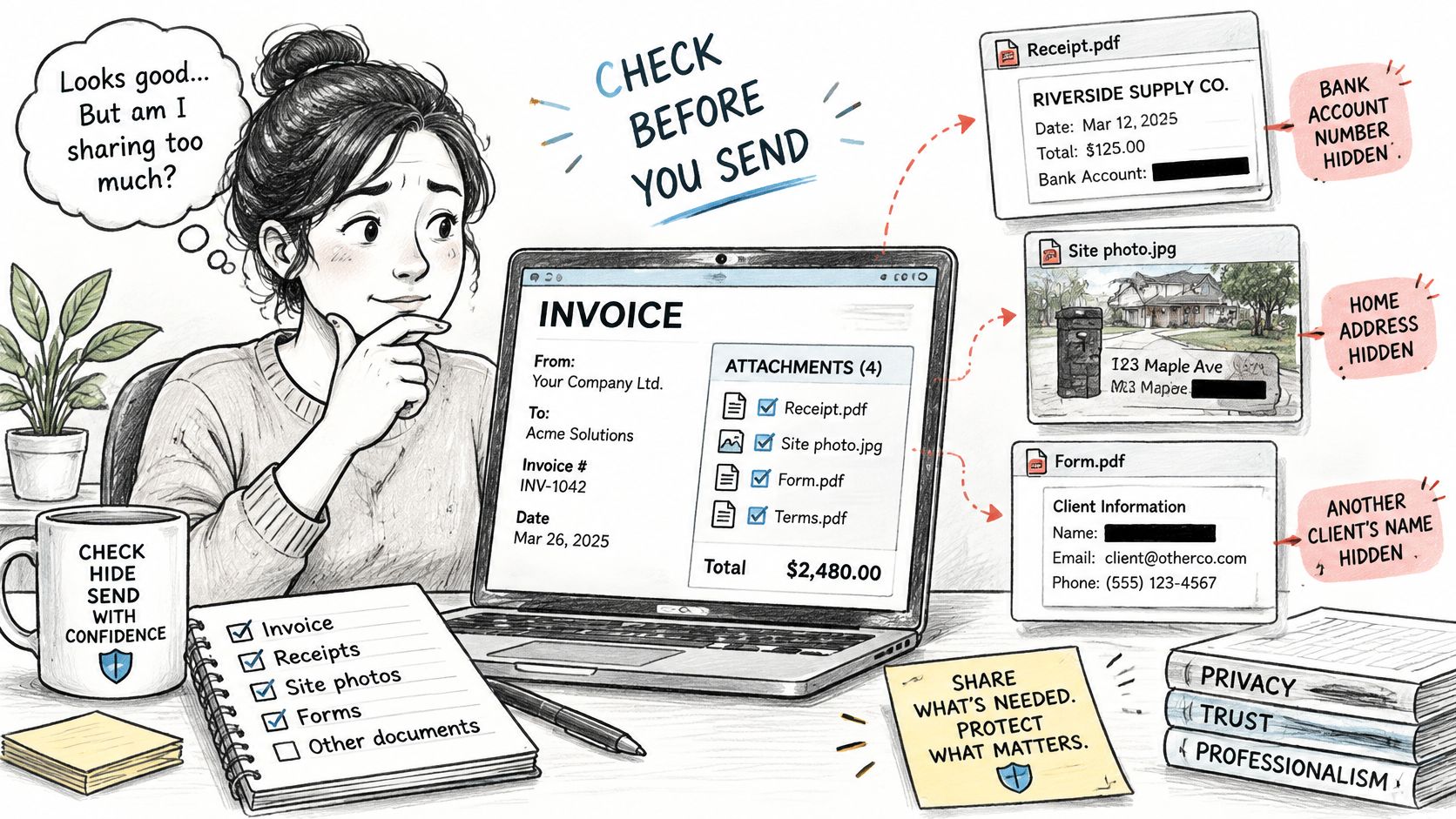
A receipt can expose a bank account number, a site photo can show a client's home address, and a shared folder can reveal another client's name. That risk grows when evidence is handled manually, and the PYMNTS and American Express Friction to Flow AR Tracker from June 2025 reported that more than 75% of small and midsize businesses still chase collections or manage disputes by email, while only 23% of surveyed CFOs said their accounts receivable teams were completely up to date.
Use a Three-Part Routine
- Send only what's needed: Include the page that proves this invoice line, not the full account statement or entire project folder.
- Redact before exporting: Remove unrelated account numbers, personal phone numbers, and other clients' details, then export a flattened copy so covered text can't be copied back out.
- Check link access: Confirm who can open the delivery link and whether it reaches only the intended invoice or a broader folder.
Public invoice and estimate links may be viewed by anyone who obtains a valid link. Customers are responsible for securing their Google account and for sharing public invoice or estimate links only with intended recipients. Treat a link like a forwarded file, because recipients can pass it on in seconds.
Job photos need the same review as documents. If a completed-work photo shows a neighbor's property, a license plate, or a house number, crop it or replace it with a closer shot of the repair. A single-page summary often proves a charge as well as a full-resolution scan, with far less exposure.
Keep the unredacted original in internal records and make the redacted version the only one that leaves the business. For readers handling European client data, small business GDPR advice from Snyp offers useful context on limiting and securing personal information. If part of a file would expose a third party when forwarded, remove that part first.
Confirm the Attachment Set and Keep It
Retention starts with the full attachment set, not the invoice alone. According to IRS recordkeeping guidance for small businesses, how long to keep a record depends on the action, expense, or event it documents, records should be kept as long as needed to prove income or deductions on a tax return, the IRS generally suggests three years, and employment-tax records should be kept for at least four years. State requirements and specific tax issues can change that period, so a local accountant should confirm the schedule.
Keep the invoice, estimate, change order, materials receipt, and payment record together under the invoice number. Deleting an attachment after payment can leave reported income or a deduction without its support. The business issuing the invoice remains responsible for the underlying services, disputes, taxes, and compliance obligations.
Final Send Checklist
- Open the client version: Test the exact file or link being sent, not an internal draft.
- Check access: If a public link is used, confirm it opens without signing in and reaches only that invoice. GetBill gives each invoice a unique access link, and clients can view and pay without creating an account.
- File the sent set: Save the final version, delivery date, and payment status in one invoice-numbered folder, with an offline copy. Guidance on sending invoices by email fits here when email is the delivery channel, because the sent message itself becomes part of the delivery record.
Before the next invoice goes out, check whether the current tool stores sent versions and attachments in a retrievable form. Fill any gap with the folder system above rather than assuming an app is a permanent archive.
When the next bill needs proof behind each line, GetBill can help create an itemized invoice, generate a PDF, and send it by email with a secure link the client can view and pay without creating an account. Pair that delivery with a small, clearly named evidence set and a saved copy of the sent version, so the amount, supporting files, and payment status stay connected.