

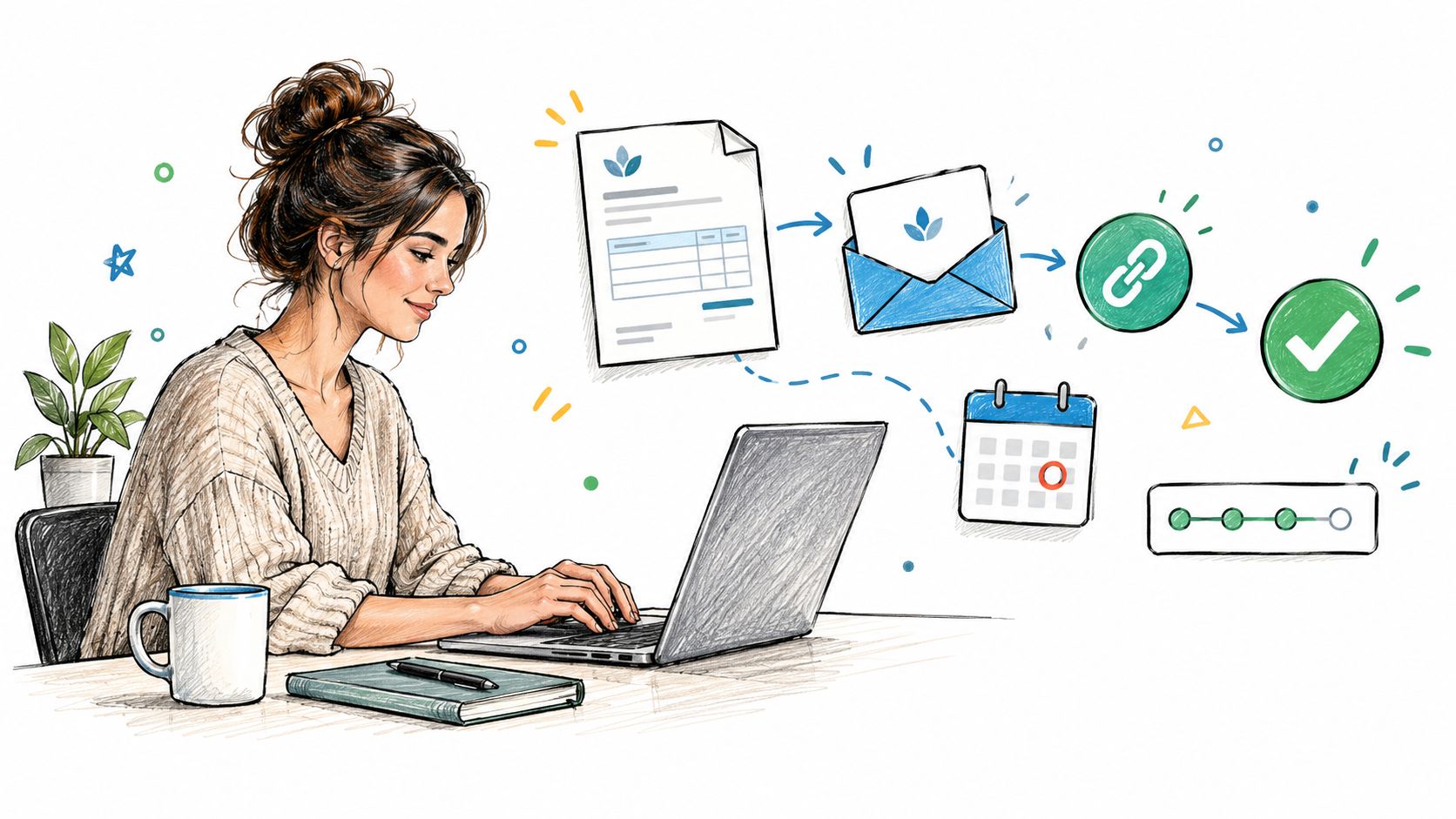
A bathroom repair is finished, the client has approved the work, and the invoice is still sitting in drafts. The owner is unsure whether the tax line is right or what due date to put on it. That hesitation can be avoided with a consistent invoice record and a short email that tells the client exactly how to pay.
Table of Contents
- What Every Emailed Invoice Must Include
- Attachment, Payment Link or Both
- Subject Lines and Email Text Clients Can Act On
- How to Send an Invoice by Email Step by Step
- Protect Payment Details From Email Fraud
- Tracking Opens, Resends and Payments
- Send Your Next Invoice With a Clear Payment Path
What Every Emailed Invoice Must Include
An emailed invoice does two jobs at once. The PDF is the record the client's accounts-payable staff file and process. The email is the prompt that tells them what is owed and how to pay it. For the bathroom repair job, the invoice needs every field an AP contact would check before they can schedule payment.
| Field | What to Write | Example for a Repair Job |
|---|---|---|
| Supplier identity | Legal or trading name, address, contact email | Ruiz Carpentry LLC, business address and billing email |
| Customer identity | Client name and billing contact | Dana Whitfield, Whitfield Dental Group |
| Invoice number | Sequential identifier, never reused | INV-2026-0147 |
| Issue and due dates | Date sent and payment deadline | Issued March 3, due March 17 |
| Service period or job | Dates worked or project name | Bathroom repair, February 24 to February 27 |
| Line items | Description, quantity, rate and amount | Carpentry, 12 hours × $65 = $780; materials, $460 |
| Tax | Rate and taxable base under local rules | Materials taxed per state and local rules; confirm before sending |
| Total and currency | Amount due with currency code | $1,240.00 USD, before any applicable tax |
| Payment instructions | Accepted methods and one clear payment action | Pay by card through the link, or by check payable to Ruiz Carpentry LLC |
The labor and materials in this example add to $1,240.00 USD before any applicable tax, so the invoice must show the correct final amount once tax is assessed. Whether services or materials are taxable, and at what rate, depends on the state and locality where the work is performed. Check the relevant state revenue department rather than copying a rate from an earlier job.
Use a unique invoice number and never reuse it. If an invoice has an error, void or cancel that record according to the bookkeeping process, then issue a corrected invoice with a new number. Deleting the original makes it harder to explain a gap in the sequence or reconcile a payment later.
Export one invoice per PDF file. Use searchable text rather than a scan, consistent date and currency formats, and a predictable filename such as Whitfield-INV-2026-0147.pdf. A searchable file also saves the AP contact from retyping details into their system, which is the most common manual step an emailed PDF creates.
Payment language differs by market, so match your wording to where the client operates. For a comparison of how terms are phrased abroad, see Nexist's guide to payment terms for Australian SMEs. For US clients, include only the methods the business can accept, as covered in this guide to payment information to include when sending an invoice.
Before sending, ask one question: Could the client pay this invoice without emailing a question back? If not, add the missing field or clarify the next step.
Attachment, Payment Link or Both
| Option | Strengths | Trade-offs | Best For |
|---|---|---|---|
| PDF attachment | Familiar, works offline, clear audit copy | Large files can bounce; client may retype data | Accounting-minded clients and one-off jobs |
| Secure public link | Short email, stays current, online payment possible | Unfamiliar domain can raise suspicion; some procurement systems block external links | Repeat clients who pay online |
| Attachment plus link | Two routes to the same invoice, with the PDF as the record | Slightly longer email; both copies must match | Most one-off and repeat jobs |
A PDF is the invoice record the client can download and file. The email is the payment prompt. It should identify the business, job or service period, invoice number, amount, due date, currency, payment options, and a plain-text fallback. UK SME qualitative research describes businesses using a mix of paper, software, and email, so no single delivery route will suit every client. A PDF is familiar and works offline, but it can be rejected by file-size limits or force manual re-entry.
A link can shorten the message and let the client view the current invoice or pay online. But an unfamiliar domain can look suspicious, and procurement systems may block outside links. The Stripe invoicing documentation describes invoice status tracking and hosted invoice pages. A hosted page can be included in an invoice email and, when configured, in the PDF footer. Card payment depends on the user's Stripe account, enabled settings, and region.
GetBill can generate branded PDFs and share documents by email or public link. On supported setups, a connected Stripe account can enable online card payments, subject to Stripe and account availability. For practical advice on deciding how to present a payment link, see this guide to using payment links on invoices.
For most small service businesses, the sensible default is a concise email plus a stable PDF. Add a payment link when online payment is enabled, but keep a plain-text alternative and tell the client how to request an accessible format or correct billing details.
Subject Lines and Email Text Clients Can Act On
A subject line should let the client identify the invoice without opening it. Match the wording to the way that client files bills. If the client searches by invoice number, use a subject such as “Invoice INV-2026-0147, $1,240.00 due March 17.” If the client tracks work by project, use “Bathroom repair, Whitfield Dental, $1,240.00.”
Use a deposit-request subject when payment is required before scheduling. After a partial payment, make the next subject explicit, such as “Bathroom repair balance, INV-2026-0147.” If the client requires a purchase-order number, include it in both the subject and the message body so it remains easy to match.
Keep the body short enough that the amount, due date, and payment action appear on the first screen. Start with the client's name, identify the work in one sentence, state the invoice number and total, and give one clear way to pay. Name the attached PDF and give the client one contact for questions. Leave marketing copy out of the message and put legal terms or footer text in the invoice document.
Keep the email operational: the client should be able to identify the work, understand the amount due, and choose a payment method without searching the attachment.
Hypothetical email example
For this example only, assume the final verified total is $1,240.00 USD and no tax applies. Use the actual final invoice total after determining any applicable tax, and replace the payment-link placeholder before sending.
Subject: Invoice INV-2026-0147, $1,240.00 due March 17
Hi Dana,
Here is invoice INV-2026-0147 for the bathroom repair completed February 27. The final total is $1,240.00 USD, due March 17. If online card payment is enabled for this invoice, use the verified payment link below; alternatively, pay by check payable to Ruiz Carpentry LLC. The PDF is attached for your records.
Payment link: (insert the verified payment URL for this invoice)
Please contact the billing email on the invoice with any questions.
How to Send an Invoice by Email Step by Step
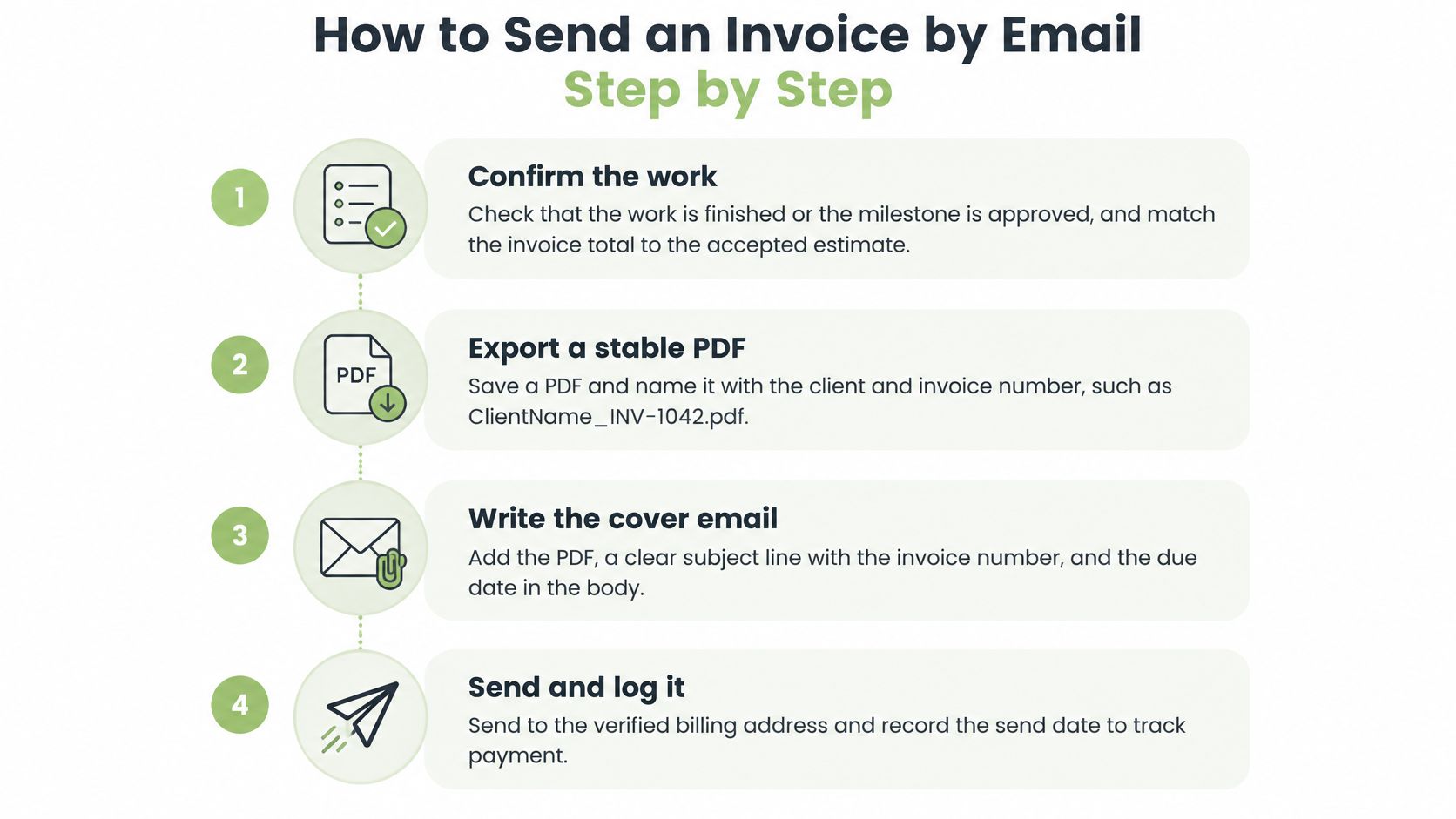
- Confirm approval. Check that the work is finished or the milestone is approved, then match the invoice total to the accepted estimate. Sending before approval can create a dispute about scope or price.
- Export the PDF. Save a stable, searchable document and name it with the client and invoice number, such as
Whitfield-INV-2026-0147.pdf. A clear filename helps the client find it later and reduces mix-ups with drafts. - Verify the billing address. Check the recipient against the billing contact in the client record, not an old email thread or an autocomplete suggestion. Read the domain letter by letter so a small typo doesn't send the invoice to the wrong place.
- Use a recognized business address. Send from an address the client already knows, attach one PDF, and check the file size against the client's mail limits. Ask the email provider or IT contact whether the business domain has SPF and DKIM sender authentication configured. A free webmail address may receive more scrutiny from client filters.
- Put the action near the top. Keep the amount, due date, and payment method visible in the first screen of the message. Add the purchase-order number if the client requires it, and avoid burying the payment step beneath a long explanation.
- Send to the right inbox. Use the verified billing contact, and don't send the same invoice to several inboxes unless the client has specified that process. Multiple copies can leave the client unsure which one is authoritative.
- Keep one record. Save the sent email, PDF, and payment status together in the client's folder. Set a follow-up reminder for the due date so the invoice doesn't depend on memory.
For jobs where the client expects a quick mobile exchange, sending repair quotes instantly through WhatsApp can complement email. The invoice record still needs a consistent home, and the client should know which document and payment instructions are current.
Protect Payment Details From Email Fraud
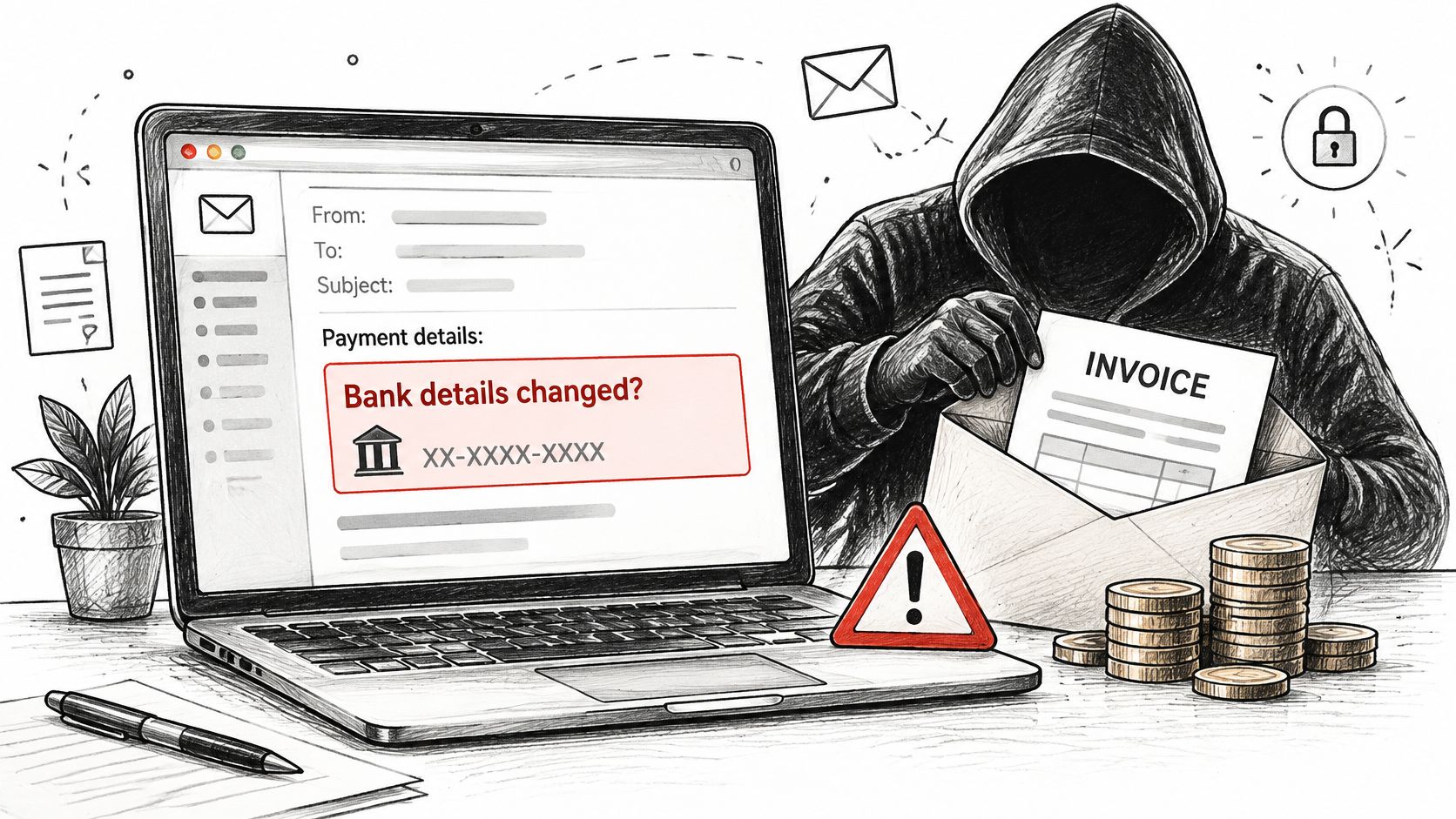
A client reports receiving an email, apparently from your business, asking them to send the repair payment to a new bank account. The message may be fraudulent. Ask the client to pause and verify the instructions through your established phone number. An invoice email alone does not authenticate a change of payment details.
In the 2025 AFP Payments Fraud and Control Survey, 79% of respondents said their organizations experienced attempted or actual payments fraud during 2024. In the report’s breakdown of organizations experiencing payments fraud, invoice fraud was reported by 24% for 2024, compared with 14% for 2023. These corporate survey findings are not estimates for GetBill users. Attackers may impersonate a supplier or the business owner to alter payment instructions or redirect funds.
Give clients these four checks before they act on changed payment instructions:
- Call a known number. Contact the business using a phone number already used for the job, never one supplied in the suspicious email.
- Check the sender domain. Compare it with the business address used for the job; a familiar display name does not confirm the sender.
- Verify the payment route. Use the previously verified invoice link or confirm any change independently before paying.
- Treat urgency as a warning. A new mailbox, pressure to pay quickly, or a different bank account deserves independent verification.
If a client questions a payment request, ask them to pause and call your business using a known number. Verify the correct instructions before they pay, and retain the suspicious message. Before recording an incoming payment, match the payer and amount to the correct invoice. For controls when your business pays its own suppliers, see these practical vendor fraud prevention controls.
Tracking Opens, Resends and Payments
Open and click signals depend on the email or payment tool and do not prove that a client read an invoice or started payment. These illustrative states are not a list of verified GetBill tracking features. Keep the amount, due date, invoice number, and payment action clear. In Tofu’s 2025–2026 dataset of U.S. field-service invoices, emailed invoices with a payment link were reported paid 79.6% of the time, compared with 56.1% without one. The comparison is observational, includes manually recorded payments, and does not establish that the link caused the difference or predict results for GetBill users.
| Status | What It Means | Next Action |
|---|---|---|
| Sent, no reply | Email left your account; receipt isn't confirmed | Check the sent folder and follow up on the due date |
| Bounced | Delivery failed; review the bounce message for the cause | Review the error, correct the address or delivery issue, then retry when appropriate |
| Opened | Tracking signal fired; the client may have viewed it | Treat it as a signal only, not proof of receipt |
| Payment link clicked, unpaid | A link interaction was recorded; no matched payment is recorded | Check payment records before following up; a click alone does not prove checkout began |
| Paid in full | Payment received and matched to the invoice | Reconcile against the bank or payment account, then close |
| Partially paid | Balance remains after a deposit or partial payment | Keep the original invoice, log the amount and date, and show the balance |
On the due date, check the sent folder and the bank or payment account. Before resending, look for a bounce, a misaddressed copy, or an invoice buried in an old thread. For a clicked link with no payment, ask whether the payment method or invoice details blocked completion. The unpaid-invoice follow-up guide can help keep the conversation tied to the original bill.
For partial payments, retain the original invoice, record each payment's date and amount, and keep the remaining balance visible. Close the invoice only after the payment appears in the bank or payment account and matches the invoice.
Send Your Next Invoice With a Clear Payment Path
Send the next invoice on the day the work is accepted, once the total and tax details have been checked. Before sending, confirm that the PDF is named and text-searchable, the recipient matches the client record, and the payment action appears on the first screen of the email. Set a follow-up date for the due date.
An invoice is finished only when the payment is recorded and matched.
For a business that prepares estimates, converts accepted estimates into invoices, sends branded PDFs by email or public link, and records deposits and partial payments with remaining balances, GetBill supports that billing workflow. Before promising card payment, confirm that the connected Stripe account and region support it.
Start with one real invoice for a small job. Send it, record the payment, and check that the balance is right before changing the whole billing routine.
GetBill helps independent professionals and small service businesses prepare estimates and invoices, send branded documents by email or public link, and record deposits and partial payments. Visit GetBill to see whether its billing workflow fits the way your business sends invoices.